Skip to content
For companies14 days free, no card

Every lead called.
Every call counted.

Leads land on your boards, your callers work them from their phones, and every call and its result is on the record for the people running the team. One CRM, with your company’s name on it.

Web app and phone appAdmins, Managers and CallersYour company’s name on it

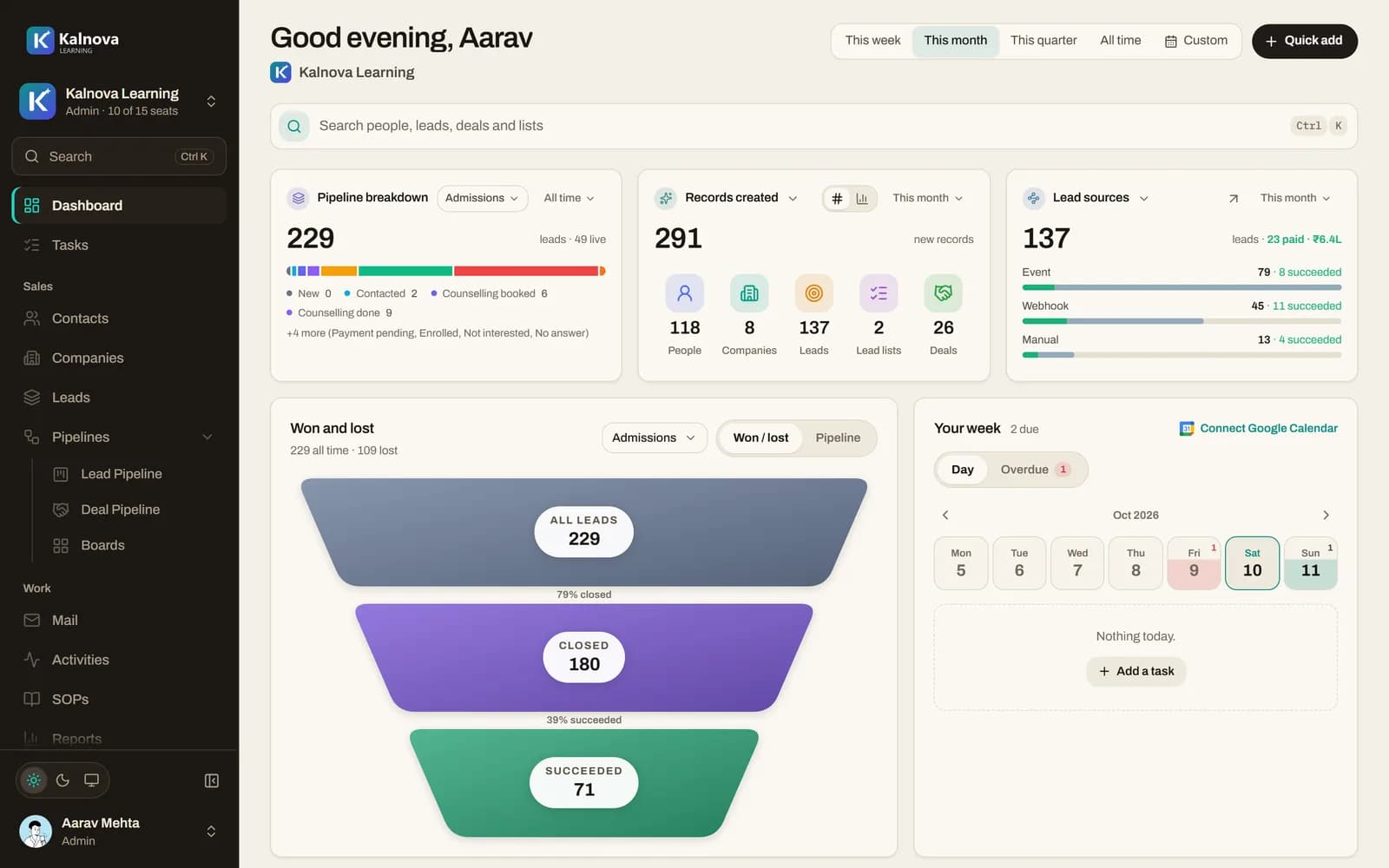
The ObjectiveDone CRM dashboard for the Kalnova Learning workspace
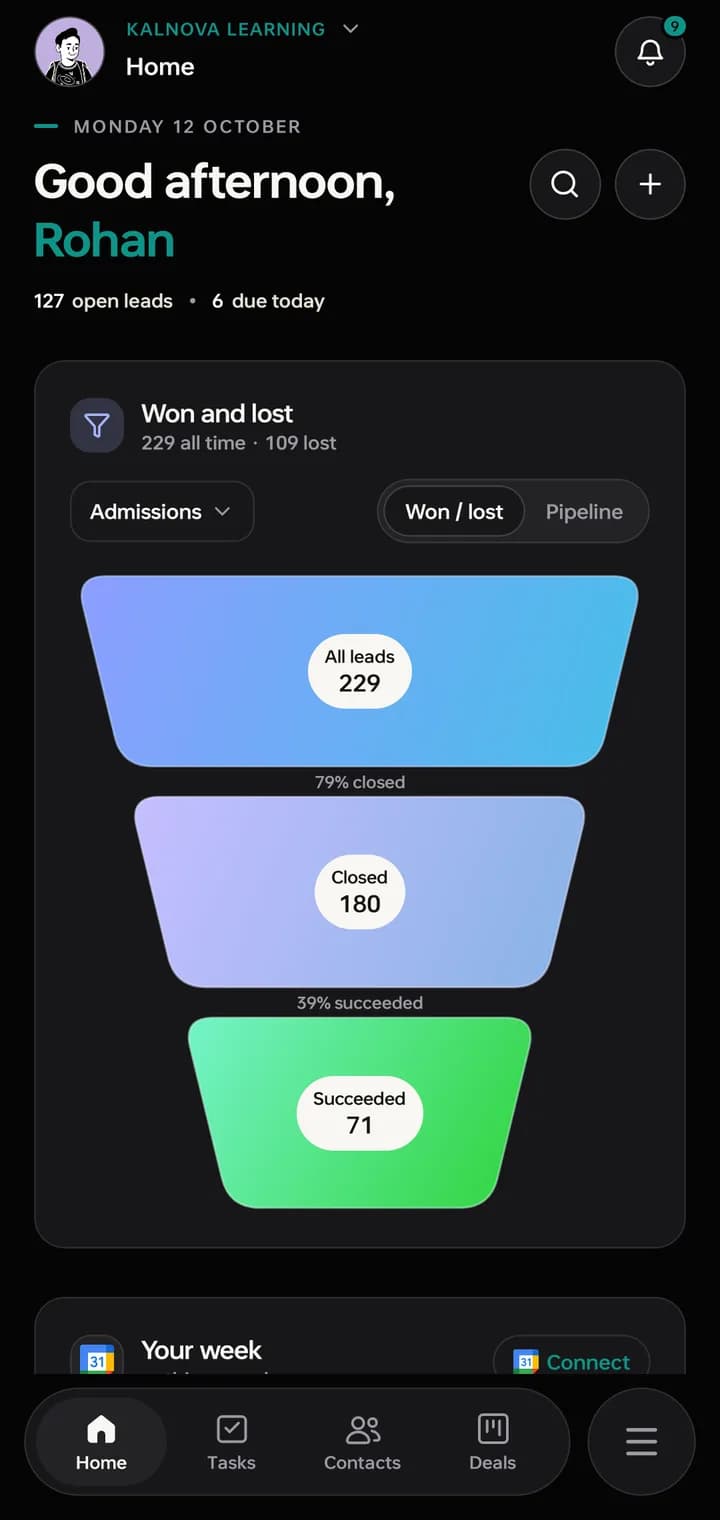
The CRM phone app’s home screen: open leads, follow-ups due and a won and lost funnel

Chapter one · The Admin

Set the company up, then watch it run.

Someone at the company sets the workspace up once: the team, the boards the work moves across, the doors leads come in through. After that, the dashboard is how they see it all.

The CRM dashboard: pipeline breakdown, records created, lead sources and a won and lost funnel
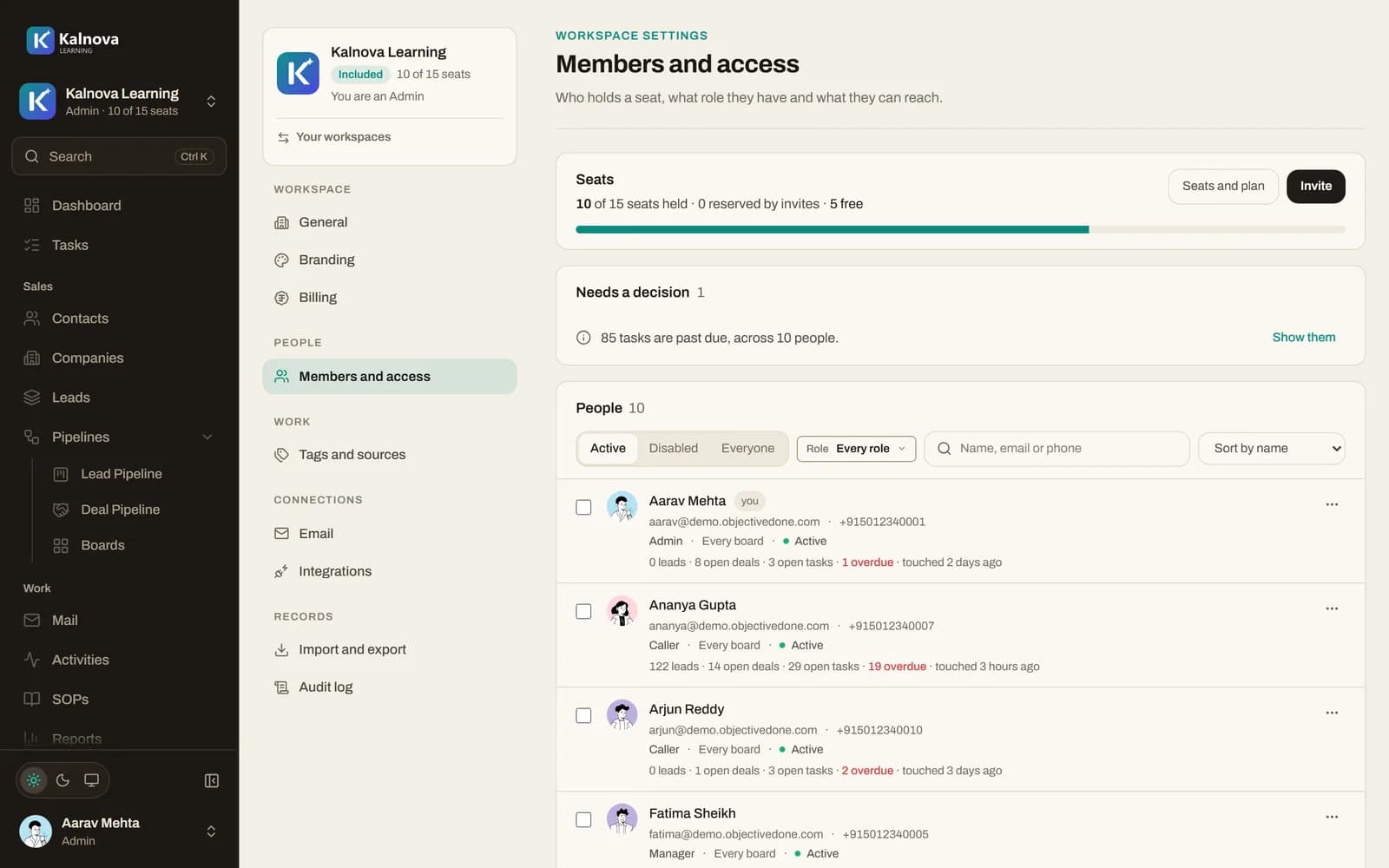
Members and access: seats in use, people with their roles and their open work
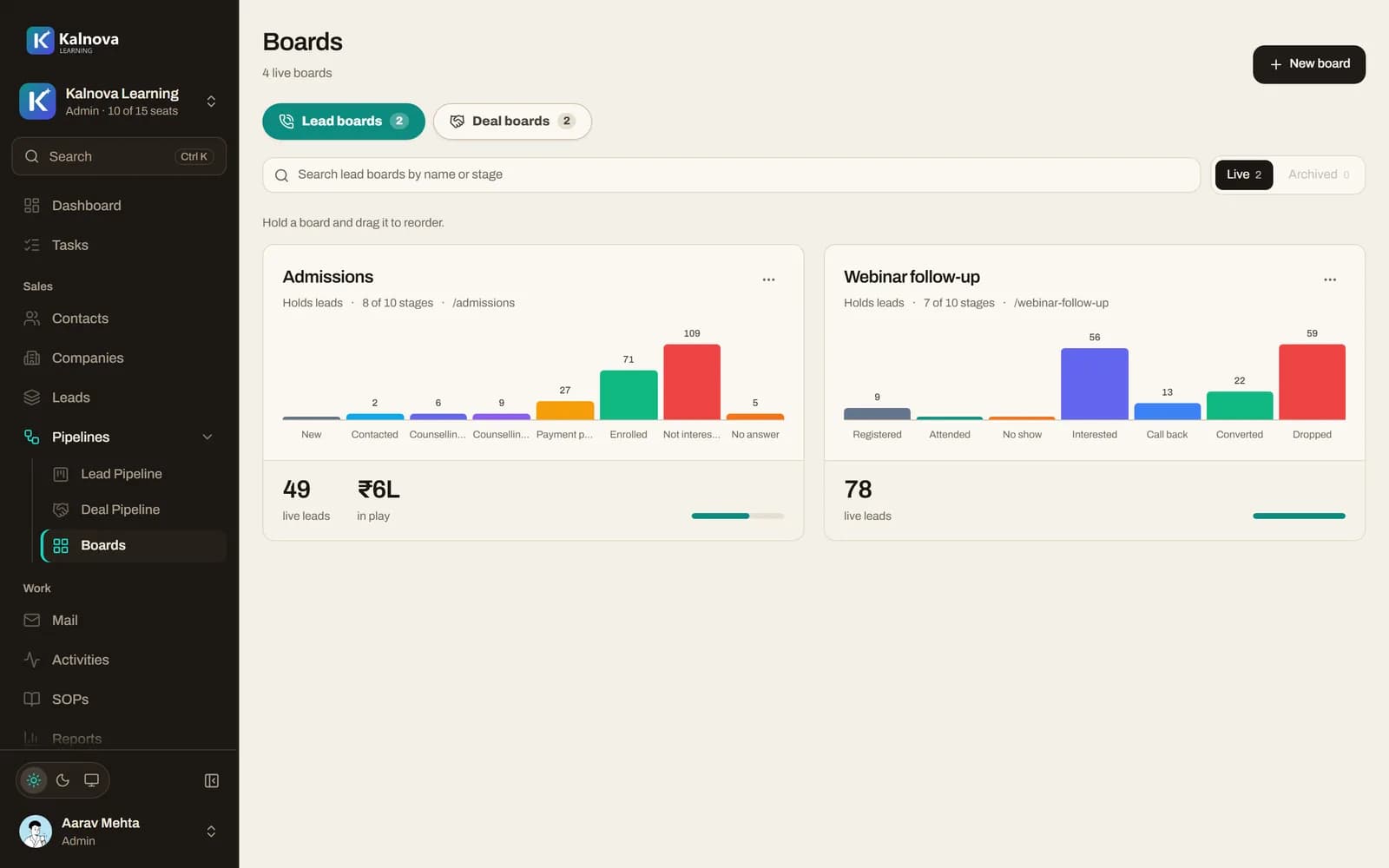
Boards: Admissions and Webinar follow-up, each with its stages and how many leads sit in each
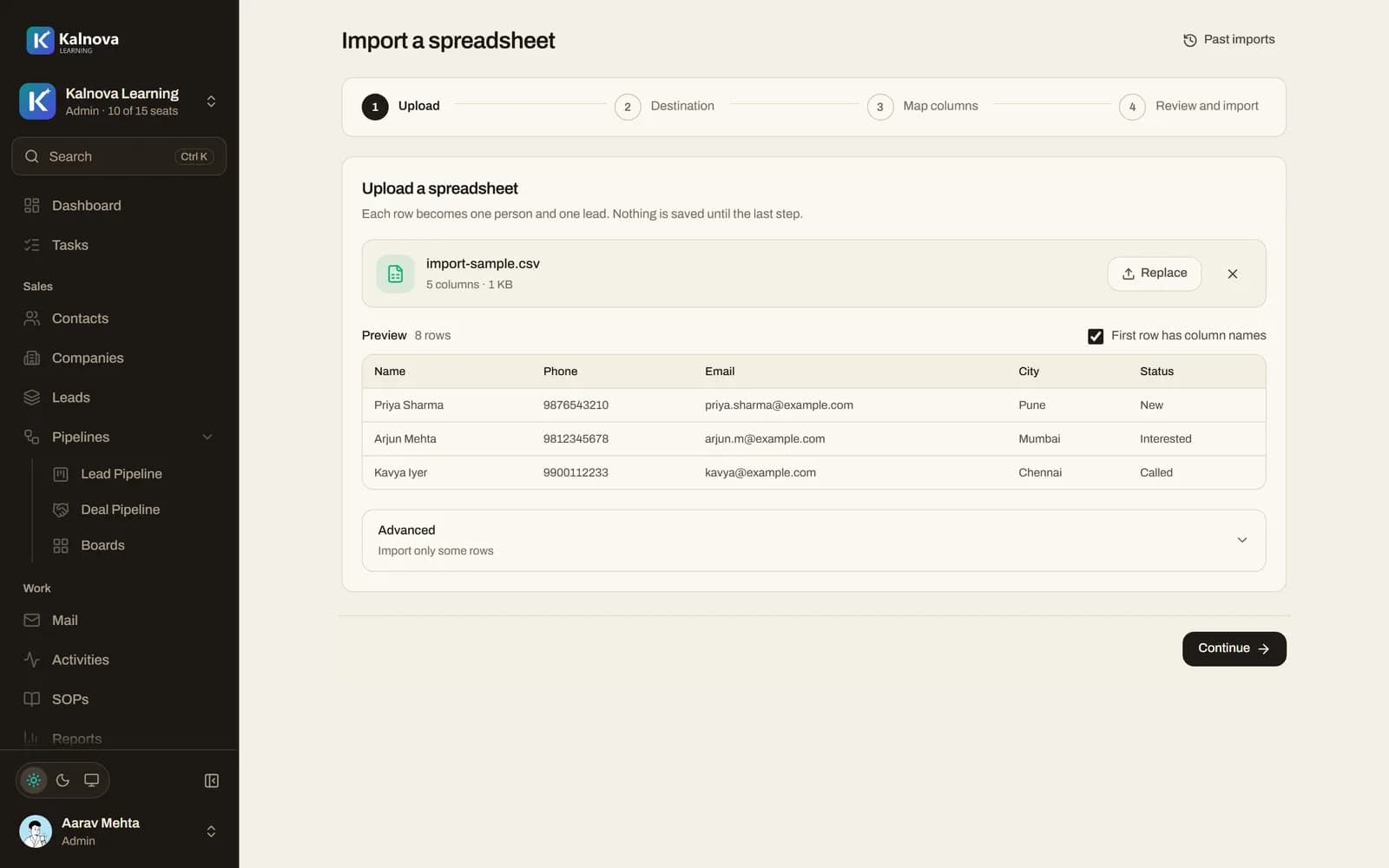
Import a spreadsheet: the file, a preview of its rows, and the four steps to import
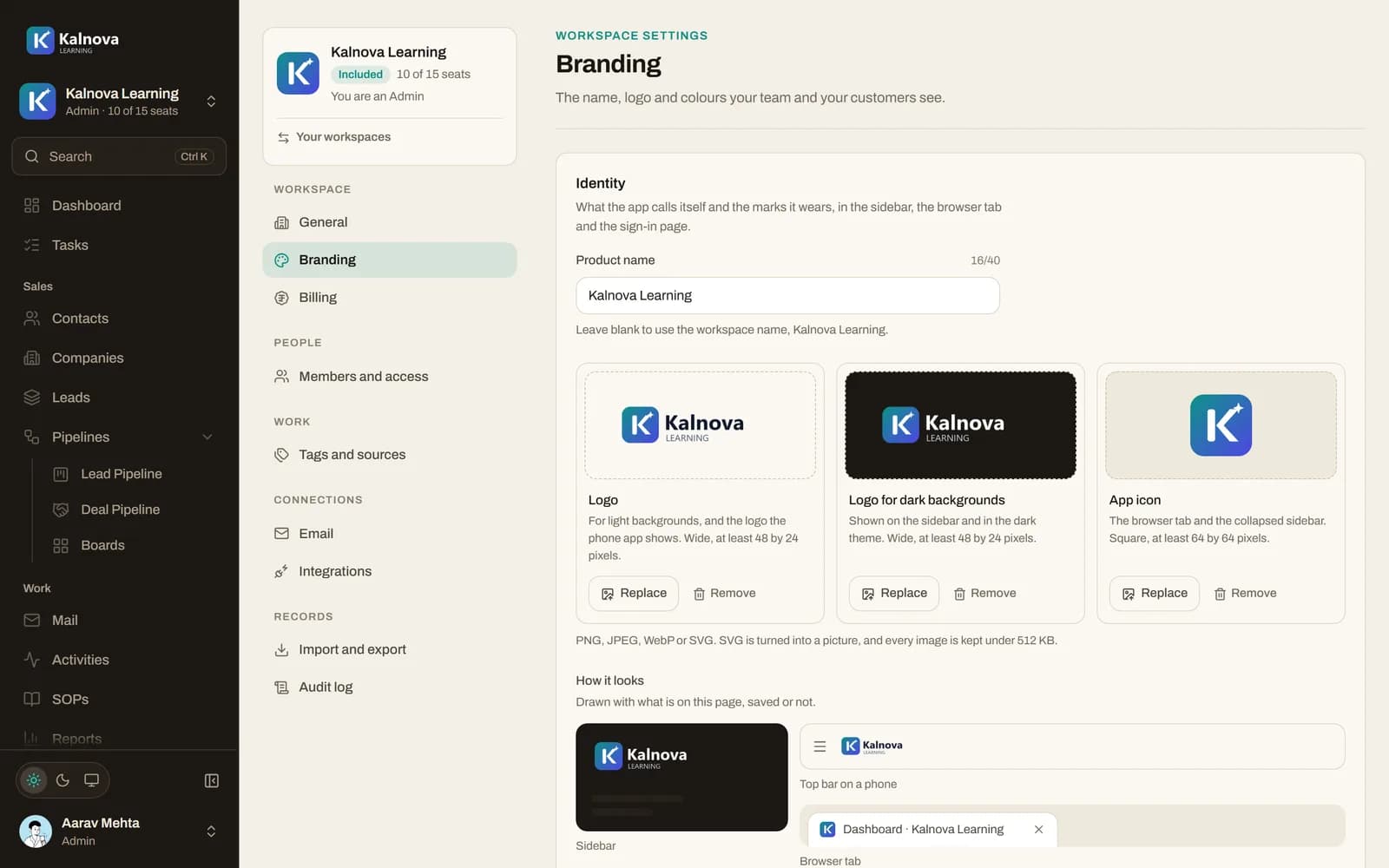
Branding: the workspace name, logos for light and dark backgrounds, and the app icon
  1. One screen for the whole company.

    The Admin opens the dashboard and sees where every lead is: how many came in this month, from which source, how far through the board they got, and how many were won and lost.

    The CRM dashboard: pipeline breakdown, records created, lead sources and a won and lost funnel
  2. Bring the team in, each with a role.

    Invite people by email and give each one a role: Admin, Manager or Caller. The seat meter shows what is in use, and removing someone hands all of their work to one colleague in one step.

    Members and access: seats in use, people with their roles and their open work
  3. Shape the boards to how you sell.

    A board for each process: admissions, webinar follow-up, corporate deals. Name the stages, colour them, and decide which ones count as a success and which as lost.

    Boards: Admissions and Webinar follow-up, each with its stages and how many leads sit in each
  4. Pour the leads in.

    Import a spreadsheet, nothing saved until the last step. Or give your website forms, ads and Pabbly a capture link, and every enquiry lands on the right board by itself, with duplicates caught.

    Import a spreadsheet: the file, a preview of its rows, and the four steps to import
  5. Put your name on it.

    Your logo and your name on the sidebar, the sign-in page and the phone app, and your colours through it. Your team works in your company’s CRM.

    Branding: the workspace name, logos for light and dark backgrounds, and the app icon

Chapter two · The Manager

Run the team from one screen.

The Manager runs the floor: hands out the calling, keeps the scripts, and reads what every caller did without asking anyone.

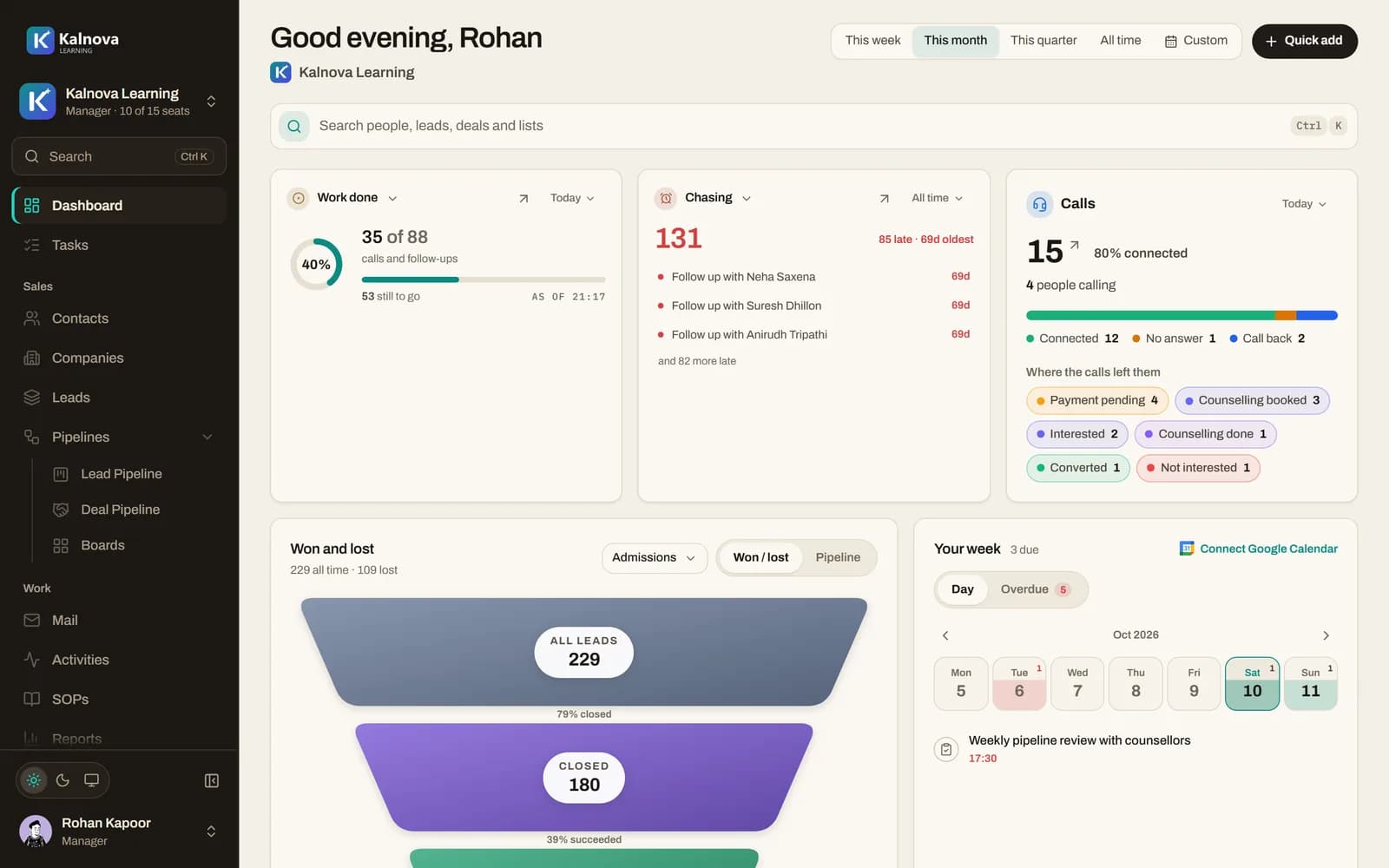
The Manager’s dashboard: work done, chasing, and today’s calls by result
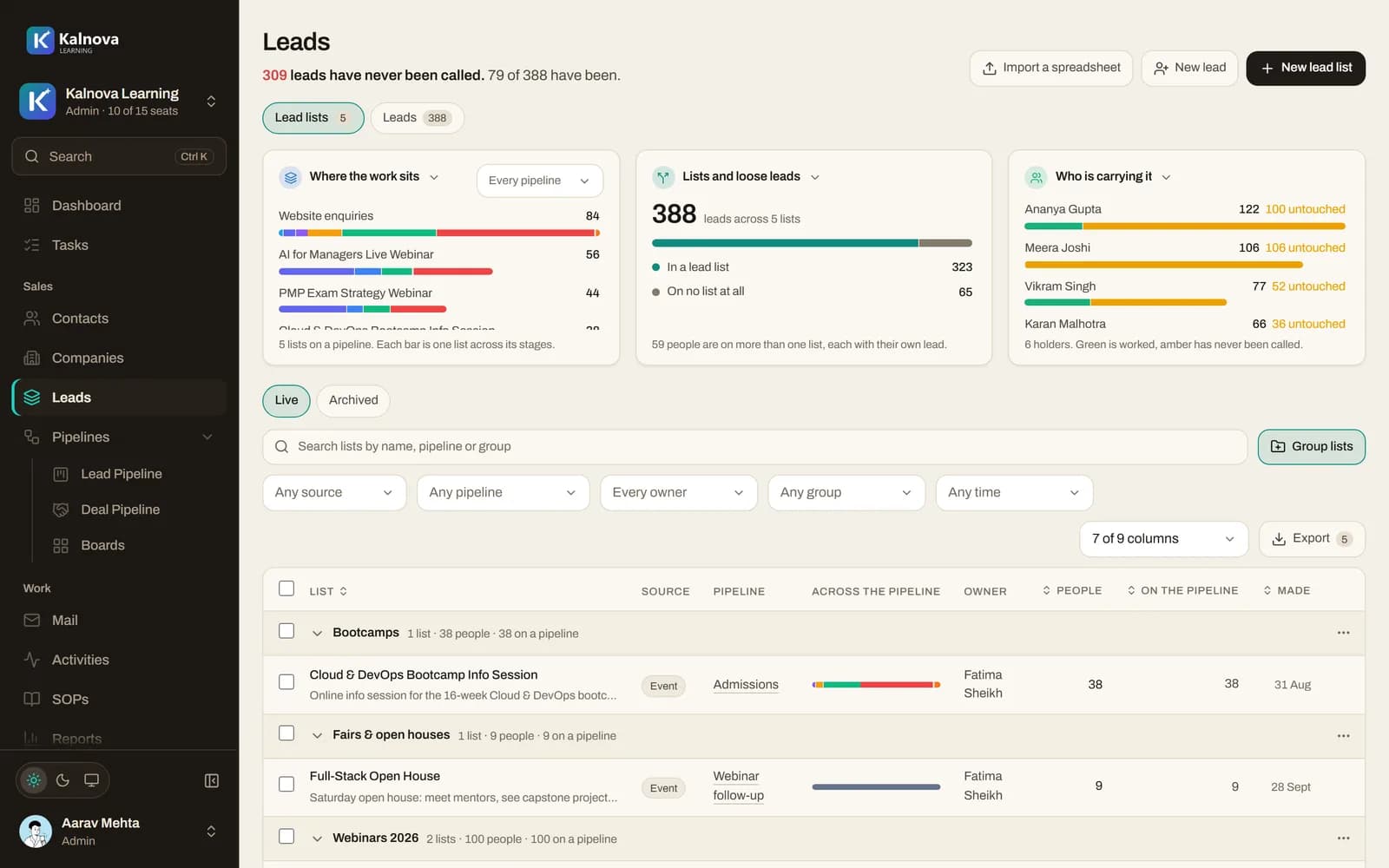
Lead lists: where the work sits, lists and loose leads, and who is carrying each list
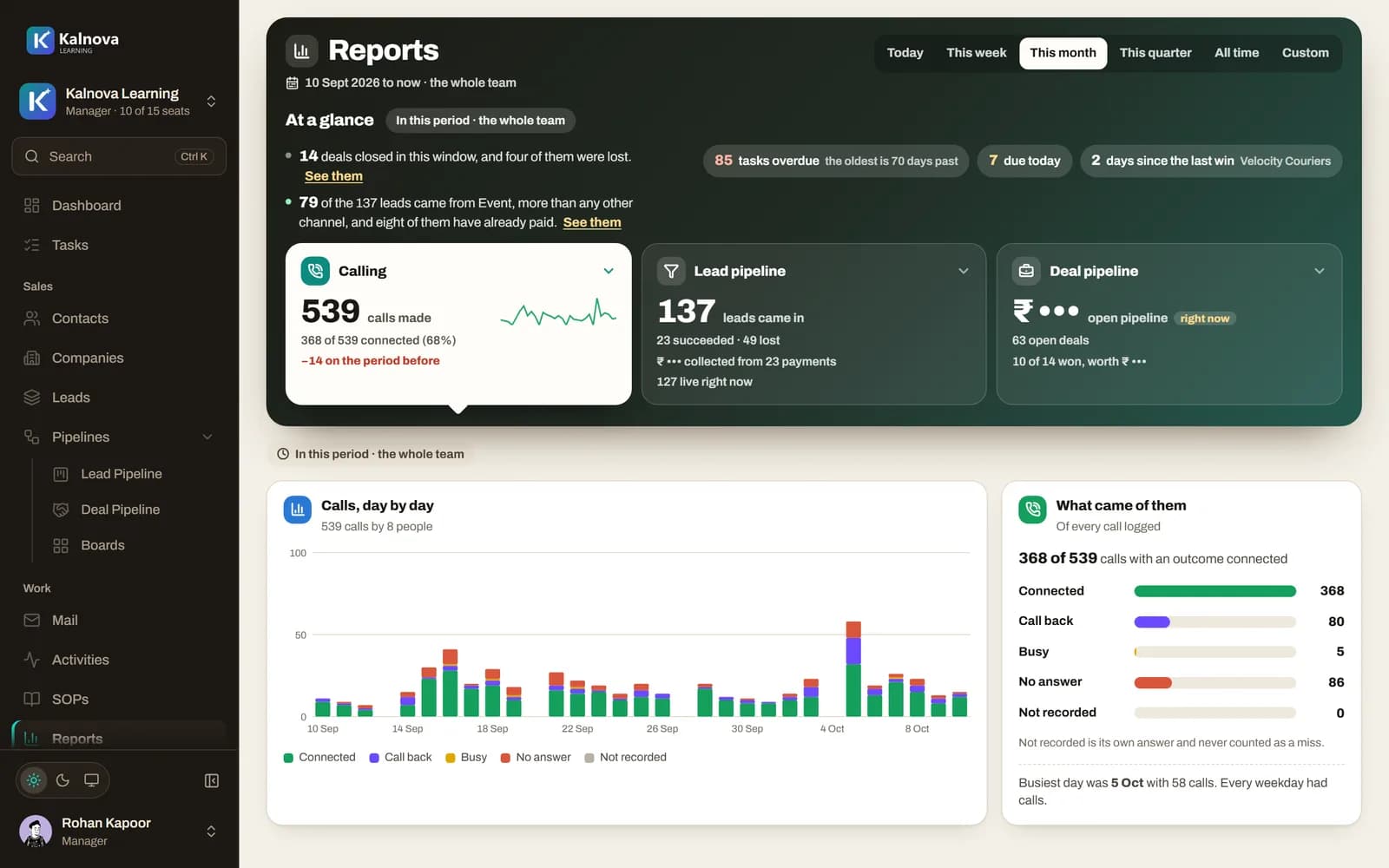
Reports: calls made, the lead and deal pipelines, calls by day and what came of them
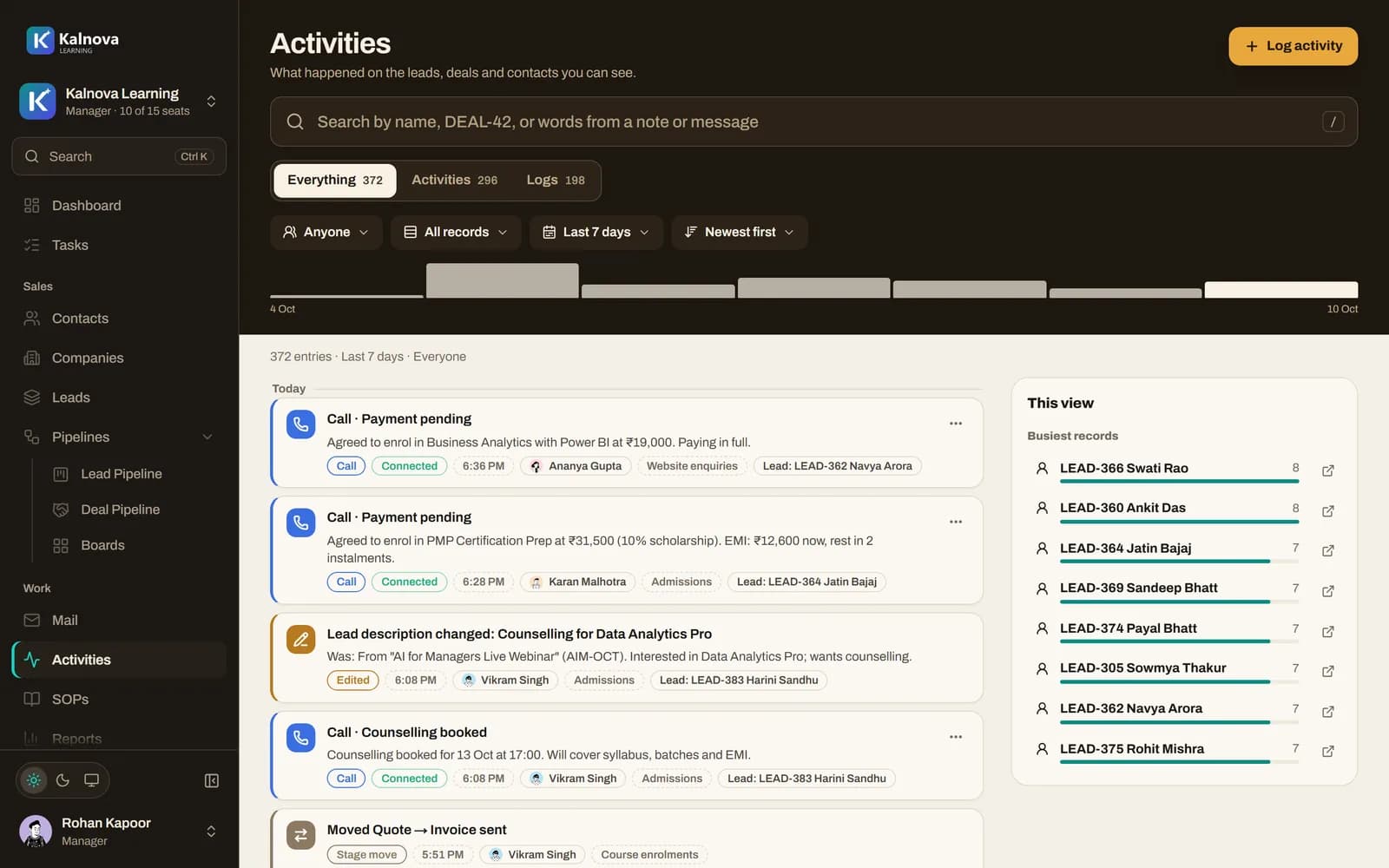
Activities: every call and stage move with who logged it, and the busiest records
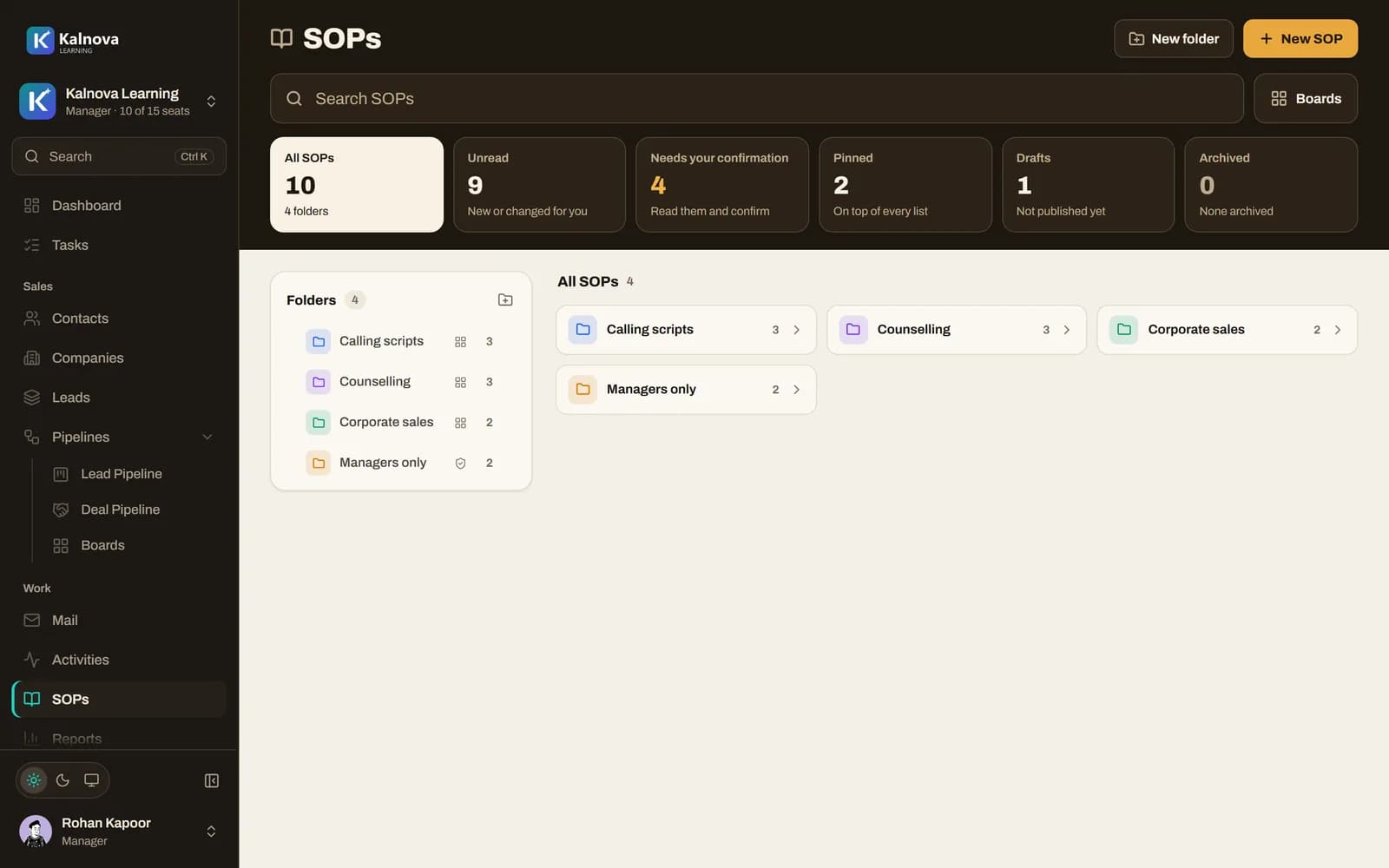
SOPs: folders of calling scripts and counselling guides, with unread and needs-confirmation counts
  1. The Manager’s morning, on one screen.

    Work done today against the follow-ups due, who is chasing what and how late it is, and today’s calls: how many connected, how many went unanswered, and where those leads went next.

    The Manager’s dashboard: work done, chasing, and today’s calls by result
  2. Hand out the calling.

    Every list of leads, where it is on the board and who is carrying it. Give a list to one caller, or deal its leads out round robin across the team.

    Lead lists: where the work sits, lists and loose leads, and who is carrying each list
  3. Read the numbers, not the excuses.

    Calls made and how many connected, day by day. What came of every call. Leads that came in and what they turned into. For any week, month or range, with each caller’s own numbers beside the team’s.

    Reports: calls made, the lead and deal pipelines, calls by day and what came of them
  4. Every call, on the record.

    Each call, note, stage move and edit is written down as it happens, with who did it and when. Nobody types a daily report: the record is the report.

    Activities: every call and stage move with who logged it, and the busiest records
  5. Write the playbook once.

    Calling scripts, objection answers and checklists, kept beside the board they belong to. Mark one as must-read and every caller is asked to confirm it.

    SOPs: folders of calling scripts and counselling guides, with unread and needs-confirmation counts

Chapter three · The Caller

The calling loop.

This is the part that has to be fast, because it happens hundreds of times a day. One caller’s morning, from an empty phone to the next lead on top.

01 · Before

  1. The day starts empty.

    A caller signs in on their phone. Nothing to chase yet, and nothing to set up: the app is waiting for work.

  2. A list lands.

    The Manager gives Vikram 24 enquiries from the website. They are on his board, newest first, and nobody else’s leads are in the way.

  3. One tap to call.

    He opens the top lead: who they are, what they asked for and where they came from. Call, WhatsApp or email is one tap away.

  4. Say what happened.

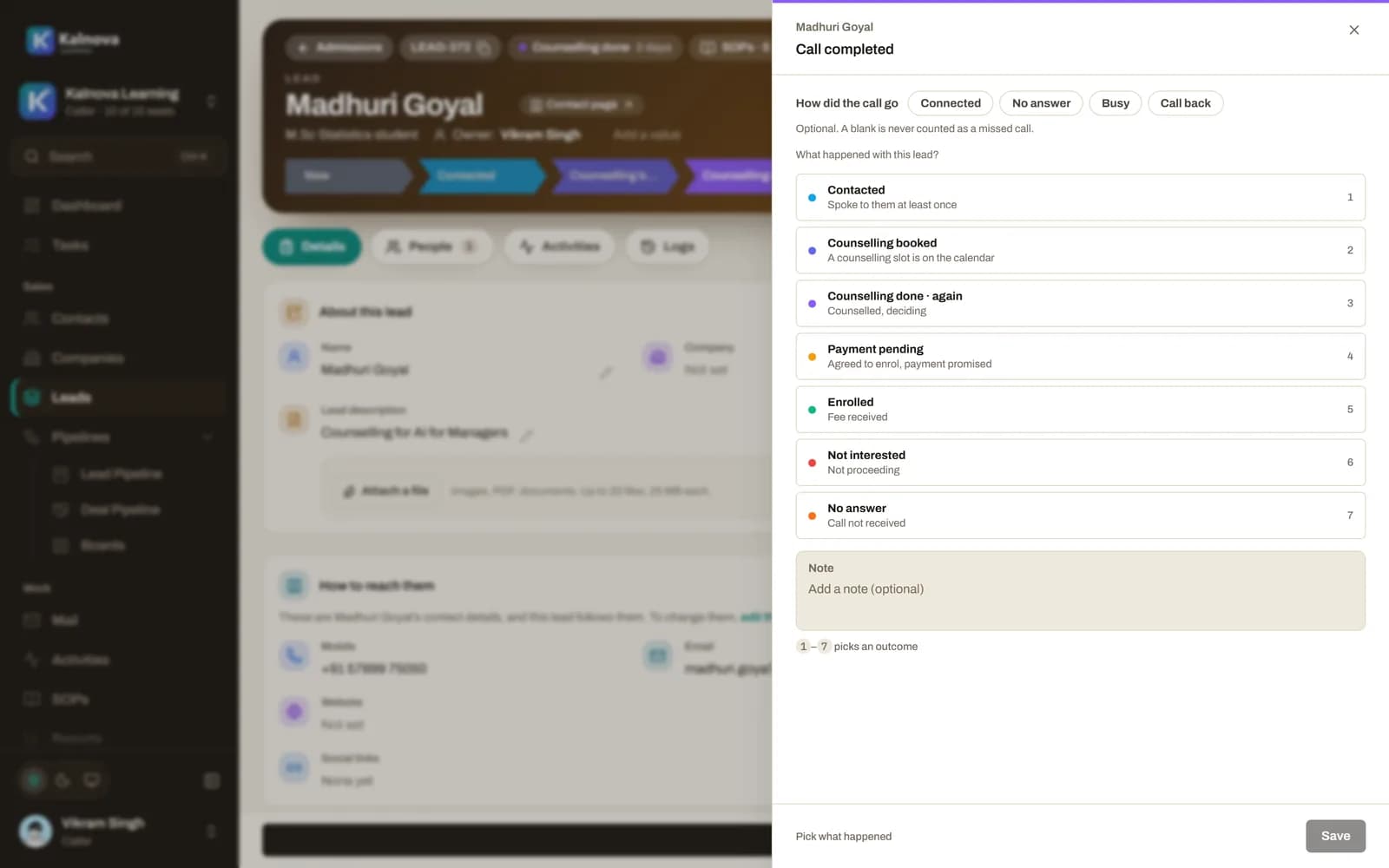
    When he hangs up, the app asks how it went: Connected, No answer, Busy or Call back, which stage the lead moves to and, when the stage needs one, the day to call back. That date becomes his task.

  5. Next name, on top.

    The lead moves to its new stage, the count drops by one, and the next person is waiting. The Manager sees the call, the result and the stage move without anyone typing a report.

The call outcome sheet on the web: how did the call go, and which stage the lead moves to

The same loop on a laptop, for callers at a desk. Number keys pick the result.

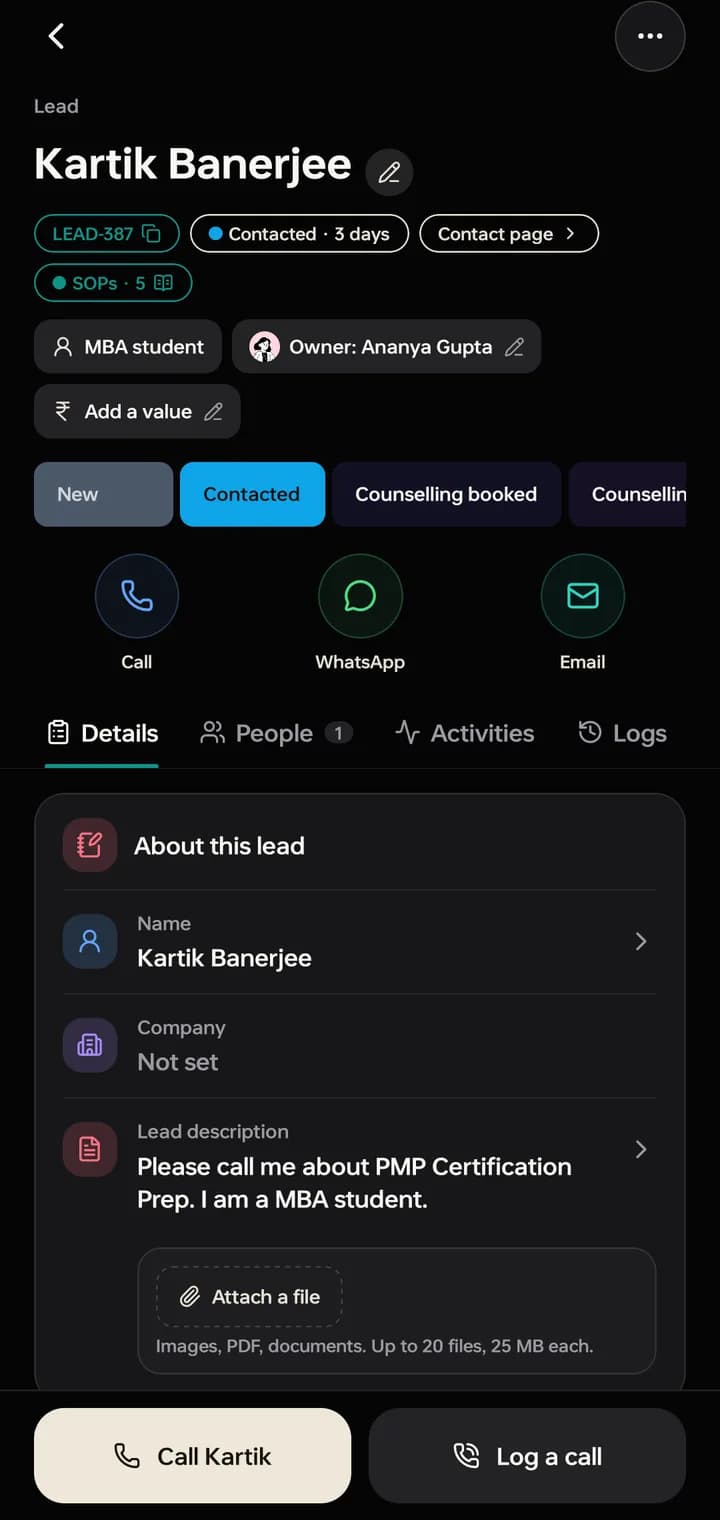
A lead in the CRM phone app with Call, WhatsApp and Email, and Call Kartik at the bottom

When a lead says yes

Deals, with the money on them.

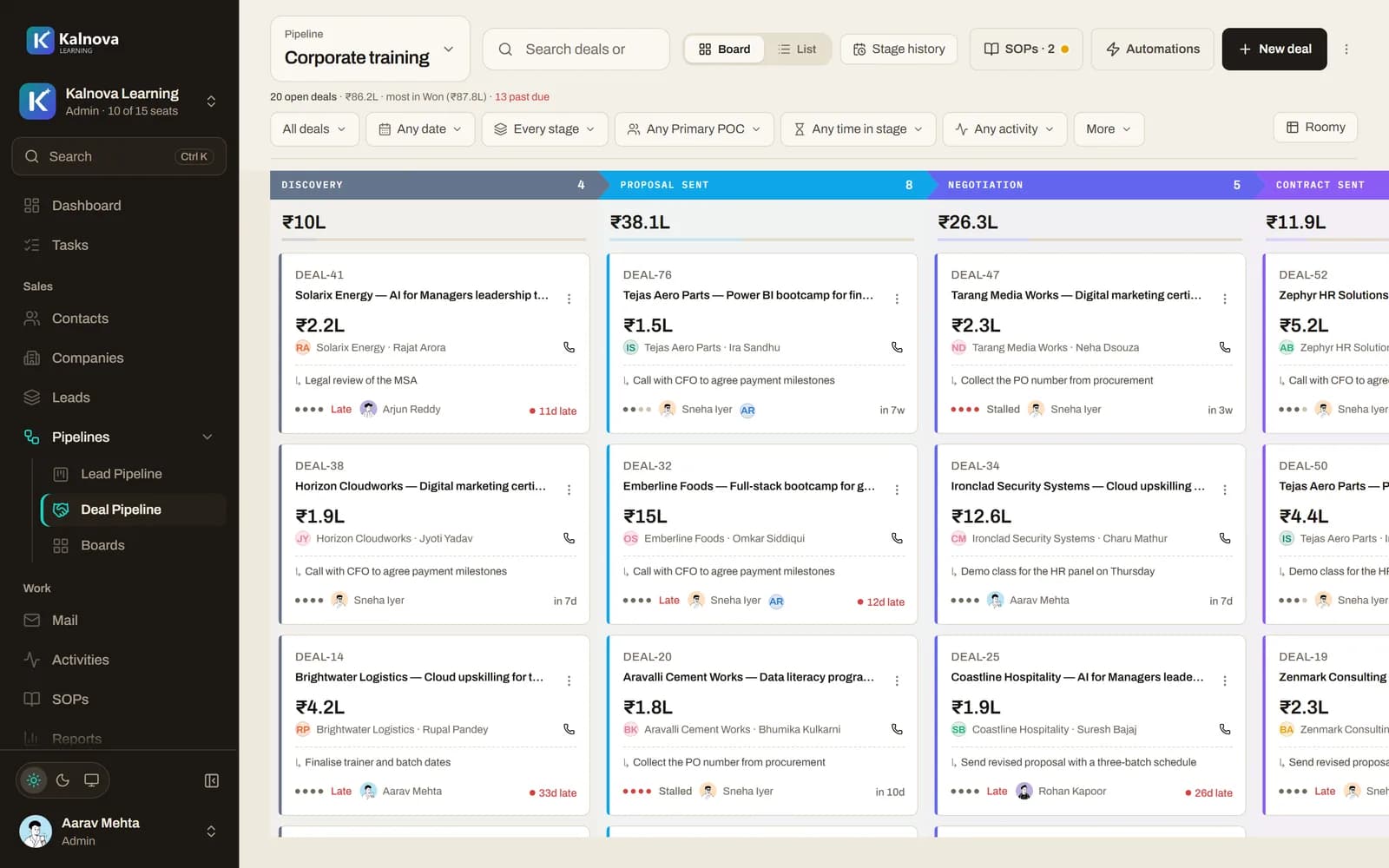
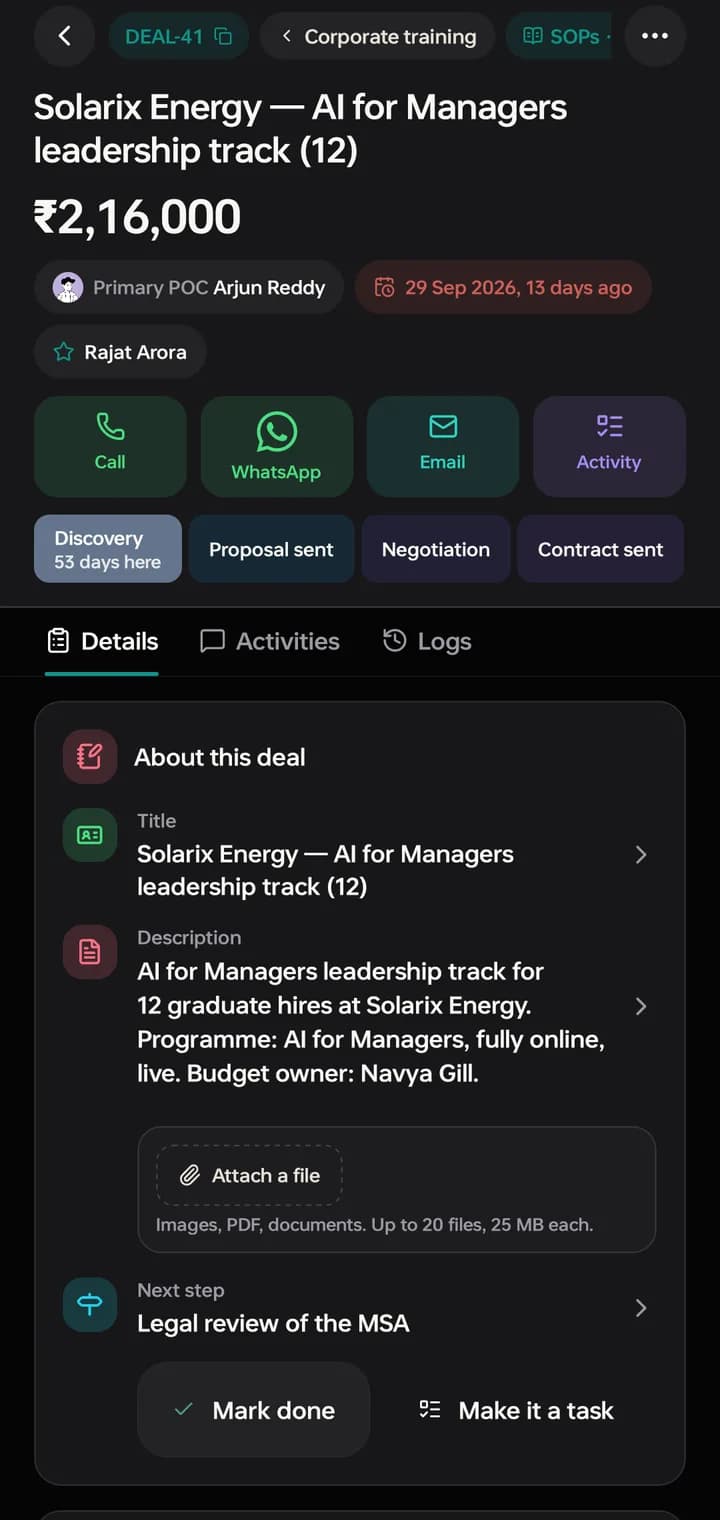
A lead that is ready to buy becomes a deal on a deal board: its value, its customers, the next step, and the payments against it. Each stage shows how many deals are in it and what they are worth.

A deal board with discovery, proposal, negotiation and contract stages and the value in each

Count and value on every stage. Won and lost come from the stage, so the numbers stay honest.

A deal on the phone: its value, primary contact, stages, and the next step

Around the loop

Everything else the team needs.

The things a sales team reaches for between calls, in the same workspace.

Tasks and follow-ups

Overdue, today, upcoming. Every follow-up a call creates is a task with a person and a date, and the late ones say how late.

Contacts and companies

One record per person with up to three phone numbers and emails, their company, every lead and deal they are on, and the whole history. Duplicates are caught on the way in.

Email, from your own mailboxes

Connect Gmail or any work mailbox, share it with the team, and send from templates. Each email is logged on the record it was about.

Calendar

Connect Google Calendar and the week’s meetings sit beside the follow-ups due, on the dashboard and the phone.

The Concierge

Ask what to work on today, where the leads are, or have it draft an email or a task. It answers only from the records the person asking is allowed to see, and changes nothing until they confirm.

Automations and API

Capture links for website forms and ads, webhooks that tell your other tools when a lead moves, and an API for leads and deals.

Roles

Three roles, three jobs.

One role per person, chosen by an Admin. Each sees what their job needs and nothing they could break.

WhatAdminManagerCaller
SeesEverything in the workspaceEvery record, or the boards an Admin gives themThe leads and deals given to them
Calls, logs results, moves stages, sets follow-upsYesYesYes, on their own leads
Hands out leadsYes, one by one or round robinYes, one by one or round robinPasses on their own lead
Imports spreadsheets, builds lead listsYesYesNo
ReportsThe whole team, every callerThe whole team, every callerTheir own
SOPs and scriptsWrites themWrites themReads and confirms
Boards, stages, automations, integrationsYesNoNo
Members, seats, branding, billingYesNoNo

Plans

For companies, from ₹999 a month.

Priced per workspace, not per person, GST included. Start with 14 days free on Growth; pay monthly, or yearly for two months free.

  • Sold to companies only
  • Work email or GSTIN to start
  • Phone app included in every plan

Starter

₹999 a month

or ₹9,990 a year

  • People in a workspace5
  • Workspaces1
  • Contacts10,000
  • Live boards5
  • Live lead lists10
  • Automations10
  • Automation runs a month2,500
  • AI requests a week250
  • Google Calendar and GmailIncluded
  • OutlookNo
  • Razorpay paymentsNo
  • Advanced permissionsNo
  • Advanced reportsNo
  • Audit logNo

GrowthThe trial runs on this

₹2,499 a month

or ₹24,990 a year

  • People in a workspace10
  • Workspaces3
  • Contacts50,000
  • Live boardsUnlimited
  • Live lead listsUnlimited
  • AutomationsUnlimited
  • Automation runs a month25,000
  • AI requests a week500
  • Google Calendar and GmailIncluded
  • OutlookIncluded
  • Razorpay paymentsIncluded
  • Advanced permissionsIncluded
  • Advanced reportsIncluded
  • Audit logNo

Scale

₹5,999 a month

or ₹59,990 a year

  • People in a workspace25
  • Workspaces10
  • ContactsUnlimited
  • Live boardsUnlimited
  • Live lead listsUnlimited
  • AutomationsUnlimited
  • Automation runs a month100,000
  • AI requests a week1,000
  • Google Calendar and GmailIncluded
  • OutlookIncluded
  • Razorpay paymentsIncluded
  • Advanced permissionsIncluded
  • Advanced reportsIncluded
  • Audit logIncluded

Enterprise

Custom

For larger teams, priced with you

  • People in a workspaceAgreed with you
  • WorkspacesAgreed with you
  • ContactsUnlimited
  • Live boardsUnlimited
  • Live lead listsUnlimited
  • AutomationsUnlimited
  • Automation runs a monthAgreed with you
  • AI requests a weekAgreed with you
  • Google Calendar and GmailIncluded
  • OutlookIncluded
  • Razorpay paymentsIncluded
  • Advanced permissionsIncluded
  • Advanced reportsIncluded
  • Audit logIncluded

Prices include GST and are for one workspace. Every new workspace starts with 14 days of Growth, the web app and the phone app included, and no card is asked for. To pay, an Admin chooses a plan on the workspace’s Billing page and pays by card or UPI through Razorpay; the plan renews every month or year until it is cancelled there, and a cancelled plan runs to the end of what was paid. If no plan is chosen, the workspace turns read-only: nothing is deleted, and everyone can still sign in, read and export.

Questions

Before you start.

Who can buy it?

Companies and their teams. ObjectiveDone CRM is not for personal use.

Starting a workspace asks for your company’s name and either a work email at your company’s own domain or your company’s GSTIN. A Gmail or Outlook address needs the GSTIN.

What does the 14-day trial include?

Everything in Growth, for your whole team: the web app, the phone app and up to ten people. No card is asked for to start.

What happens when the trial ends?

An Admin chooses a plan from the workspace’s Billing page. If nobody does, the workspace turns read-only: nothing is deleted, nobody is locked out, and everyone can still sign in, read and export. Choosing a plan opens it again.

How do we pay, and can we cancel?

An Admin chooses a plan on the workspace’s Billing page on the website and pays by card or UPI through Razorpay, monthly or yearly. It renews by itself at the end of each month or year.

Cancel any time from the same page. Nothing more is charged, and the workspace keeps the plan until the end of the period already paid for. Nothing is sold inside the phone app.

Is there a phone app?

Yes, for the whole team, on its way to Google Play and the App Store. It signs in to the same workspace as the web app. There is nothing to buy in it and no sign-up in it: the company’s Admin sets the workspace up on the web and invites the team.

Who sees what?

An Admin sees everything. A Manager sees every record, or only the boards an Admin gives them. A Caller sees the leads and deals given to them.

An Admin can switch the workspace from Private to Team, and then every caller can see the whole book. The rule is kept by the database, not just the screens, so it holds everywhere.

How do our existing leads get in?

Import a spreadsheet (CSV or Excel) and map its columns, with nothing saved until the last step. For new enquiries, give your website forms, ads or Pabbly a capture link and each one lands on the right board on its own.

Where is our data kept?

In India, in Mumbai. Each company’s workspace is its own: nobody outside it can read its records, and that is enforced in the database. The privacy policy has the details.

Is it part of ObjectiveDone Connect?

No. Connect is the business card and contact app for one person; the CRM is a separate product for a company’s sales team, and a Connect plan does not include it.

For companies

Put your leads in front of your callers.

Fourteen days, your whole team, the web app and the phone app. Bring a spreadsheet of leads and make the first calls today.

ObjectiveDone CRM is sold to companies and their teams, not for personal use.